

Your hotspot data, accounted for.
My phone's hotspot report showed that my PC was using about 80% of my mobile data. I was mostly using Codex in VS Code and searching the web, so I wanted a small tool that could answer two questions: when is the data being used, and which programs can be tied to it? Data Watch records connection totals and best-effort program estimates locally, then shows them in a private dashboard.
Data Watch also includes a Memory tab for investigating slowdowns with RAM, swap, memory pressure, and program memory history, with a confirmed SIGTERM stop for your own runaway processes.
Data Watch is currently for Ubuntu Linux. Windows and macOS support are future work because each operating system exposes network and desktop notification features differently.
Read the development story for the collector and interface challenges, and our coding-agent bandwidth investigation for why a day of agent-assisted coding approached 400 MB and what can help reduce it.
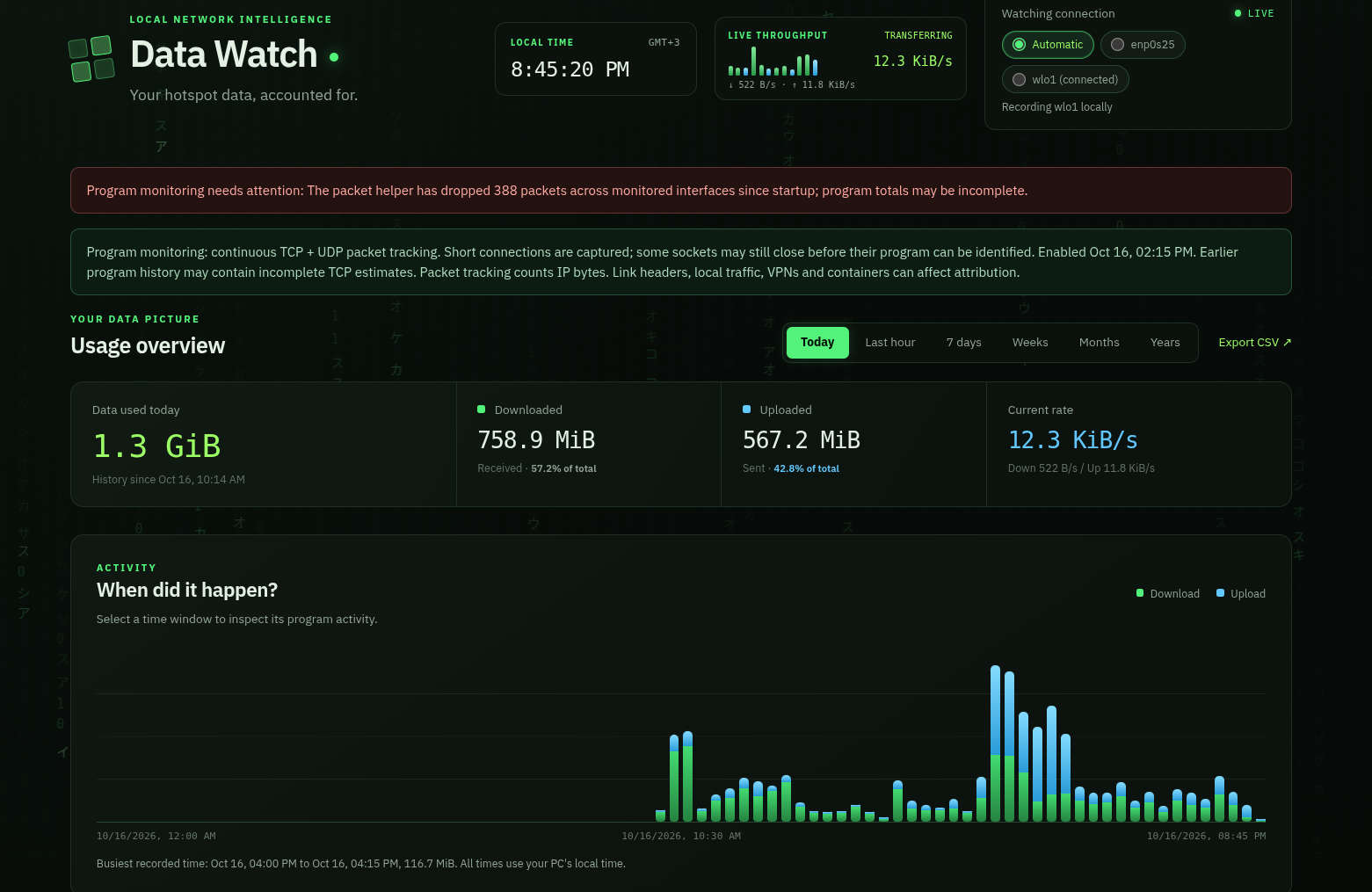
The dashboard shows live traffic, historical usage, and collection status, including warnings when program attribution may be incomplete.
The Linux release is one executable plus documentation and license notices. The dashboard, font, favicon, and SQLite engine are embedded in the executable, so the installed application does not need a separate web server, database package, or static asset folder. The executable uses Ubuntu's system libraries and ip/ss commands. Desktop alerts use notify-send from libnotify-bin.
Download the ready-to-run Ubuntu 22.04+ x86-64 archive from GitHub Releases. It contains the executable, documentation, and license notices; no Rust toolchain is needed to run it.
curl -fLO https://github.com/benaiah-muga/data-watch/releases/latest/download/data-watch-linux-x86_64.tar.gz
curl -fLO https://github.com/benaiah-muga/data-watch/releases/latest/download/SHA256SUMS
sha256sum -c SHA256SUMS
tar -xzf data-watch-linux-x86_64.tar.gz
cd data-watch-linux-x86_64
./data-watch install
To build from source, install Rust and a C compiler, then run:
cargo build --release --locked
./target/release/data-watch install
Or run ./install.sh, which builds and installs the same release binary. The installer copies the executable to ~/.local/bin/data-watch, creates a Data Watch application-menu entry with its own icon, installs a systemd user service, enables it at boot, and keeps it running after logout. After a successful install in a graphical desktop session, the installer waits for the local dashboard and opens it automatically. The menu entry also opens a standalone Chrome/Chromium-style app window when available, then falls back to your default browser. In a headless or SSH-only session, installation prints the local URL instead of opening a browser. A browser launch failure does not undo monitoring installation. Usage history stays in ~/.local/share/data-watch/usage.sqlite3 with user-only permissions.
Open http://127.0.0.1:8765 or launch Data Watch from Applications. The monitor records without an open browser tab. The PC must be awake to collect traffic. System notifications appear when the graphical desktop session is available, including while the dashboard is closed.
For desktop alerts, install the Ubuntu notification command if it is not already present:
sudo apt install libnotify-bin
systemctl --user restart data-watch.serviceThis is not yet plug and play on every Linux machine. The release targets Ubuntu 22.04+ on Intel/AMD x86-64. It has been exercised on the development Ubuntu PC, not certified across all Ubuntu releases or distributions.
| Component | Requirement |
|---|---|
| Release executable | Linux x86-64, glibc 2.34 or newer, libgcc_s, and standard system libraries. SQLite is embedded. |
| Always-on installation | systemd, a working user service manager, loginctl, and permission to enable user lingering. Run the installer as your ordinary desktop user. |
| Collection | Readable Linux /proc and /sys, a physical network interface, and ip/ss from iproute2. Virtual-only container interfaces are not currently supported. |
| Dashboard | A local browser. Chrome-family browsers support the app window; xdg-open provides the default-browser fallback. No internet is needed to view recorded history. |
| Desktop alerts | A graphical notification session and notify-send (libnotify-bin on Ubuntu). Sound depends on the desktop notification settings. |
| Full attribution | An administrator enables data-watch full separately. The desktop shortcut for that command uses gnome-terminal; other desktops can run it from their own terminal. |
Other x86-64 distributions with these facilities may work but remain untested. ARM machines need a separate build; Alpine/musl and non-systemd setups are not supported by this installer. Building from source does not remove these operating-system integration requirements. Windows and macOS support are future work.
Use http://127.0.0.1:8765 on the monitored PC, including after the hotspot is turned off. The UI, font, charts, and database are local. When no physical connection is active, live rates stop and the dashboard keeps showing the last watched interface's saved totals, programs, and history. It remembers that history selection across service restarts and resumes monitoring when you reconnect. History remains separated by network interface, rather than by Wi-Fi name.
A phone or another PC cannot reach this loopback address. Data Watch currently serves only the machine on which it runs. If the local service is stopped, start it with systemctl --user start data-watch.service.
- Connection totals for today, the last hour, seven daily bars, twelve weekly bars, twelve monthly bars, or five yearly bars, with downloads and uploads separated.
- Download and upload cards show each direction's share of the selected period.
- The dashboard header shows local time and timezone beside current throughput and connection status.
- Selecting a timeline bar updates the summary and program list to that interval. Use Return to today to reload the current readings.
- Choose a network connection with accessible radio buttons in the live header.
- A live throughput meter in the header and a low-contrast Matrix-style background that stays behind the dashboard content.
- A timeline of usage. Select a period to inspect its attributed programs.
- Program totals and current rates. Select any part of a program row to open its details card, including usage history, live rate, connection share, and last observation. The card follows the selected time interval and supports keyboard access and Escape to close.
- The program list shows ten entries initially. Use Show more programs to browse the full list in a scrollable area, or Show top 10 to collapse it again.
- The current on-disk history database size, including pending SQLite WAL writes.
- A configurable daily data limit. Data Watch sends one Linux desktop notification with the system alarm sound per day when the selected connection reaches it. Use Send test to check notifications and sound.
- CSV export for further analysis.
Times use the PC's local timezone and sizes use binary units (MiB, GiB). The collector samples every two seconds and stores detailed data by minute for 30 days, then compacts older traffic into daily summaries retained for up to five years.
Open the Memory tab, or go directly to http://127.0.0.1:8765/#memory. It uses the existing service and works without Wi-Fi or the packet-capture helper. No extra packages, root access, or cloud connection are required.
- Live physical RAM use, available RAM, swap use, directional swap paging rates, and Linux memory pressure (PSI).
- Kernel OOM-kill counters since boot and new kills observed between samples. This does not identify the killed process or include every desktop/application termination.
- Programs grouped by Linux process name, ranked by resident memory (RSS), with swap and process counts. Select any row for details. Ten groups appear initially; expand the list to scroll through more.
- The live program details card lists the individual processes in the group with their PID, RSS, and swap. Each process owned by your user account has a two-step Stop control that sends SIGTERM only after you confirm on a second click. Processes owned by other users are labelled and cannot be stopped from the dashboard.
- Selectable history for the last hour (five-minute bars), today (15-minute bars), and seven days (one bar per day). Selecting a bar shows interval peaks and the largest recorded programs; Return to live restores current readings.
The collector reads /proc/meminfo, /proc/pressure/memory, /proc/vmstat, and readable /proc/<pid>/status files every six seconds, even while the dashboard is closed or the hotspot is disconnected. Memory snapshots are summarized by minute. Program history retains peak RSS, swap, and process counts for the 20 largest groups in each sample, grouped into five-minute windows. Both are retained for 30 days in the same private SQLite database; memory history begins when this version is installed. Missing samples remain gaps. Historical RAM, swap, pressure, and program peaks are not necessarily simultaneous.
RAM in use means total minus Linux's available-memory estimate, which includes reclaimable memory. The separate cache estimate is informational, not an extra amount to add to RAM use. If MemAvailable is missing, a labelled fallback estimate is used. PSI shows the percentage of time tasks stalled for memory, not a percentage of RAM occupied. Missing PSI or paging counters are reported as unavailable.
The interface highlights low headroom (90% or 95% RAM use), elevated PSI (some at 5%/20%, or full at 1%/5%), and newly observed kernel OOM kills. These are explanatory heuristics, not a diagnosis or a universal freeze threshold. High cached memory is not automatically a fault. CPU load, disk waits, graphics drivers, and application faults can also cause freezes. Apart from the confirmed per-process Stop control in the live details card, the feature only observes; it does not clear caches, resize swap, or change system settings.
RSS readings are lightweight estimates and can double-count shared pages across processes. Their sum need not equal system RAM use, and a large program row alone does not establish a memory leak. Short spikes can fall between samples; collection cannot run while the PC is suspended. Names are Linux process names, which may be truncated, and protected processes may be unreadable. We deliberately avoid the heavier per-mapping scans needed for proportional set size (PSS).
A 20-second check on the development PC measured about 5.5 MiB RSS for the updated background service versus 5.2 MiB for the preceding version, and 2.9% versus 2.3% CPU on one core (including waited child processes). This short observation excludes the browser and packet helper and is not a guarantee on other systems. No runtime dependencies were added.
See the Linux kernel documentation for available memory and RSS and pressure stall information.
Connection totals come from Linux interface counters and include background services and local network traffic, so they can differ from carrier billing. Basic program attribution uses TCP socket counters. It can miss UDP/QUIC traffic, short-lived connections, some privileged processes, and VPN inner traffic. Browser traffic is grouped under Chrome or Firefox; tabs and VS Code extensions sharing a process cannot be separated. The dashboard shows traffic that could not be attributed instead of assigning it to a guessed program.
Enable continuous TCP and UDP packet tracking, including Chrome QUIC and short connections:
~/.local/bin/data-watch fullEnter your Ubuntu password locally when requested. The same binary installs a root-owned copy under /usr/local/libexec/ and enables data-watch-capture-<uid>.service. It restarts automatically and runs after logout and reboot; you can close the terminal. No NetHogs, tcpdump, extra library, or package download is needed. The capture helper reads packet headers and process/socket metadata, then sends aggregate byte counts to the unprivileged monitor. It never opens the history database or serves HTTP. Its systemd unit limits its capabilities and filesystem access.
The dashboard explicitly shows continuous TCP + UDP packet tracking while it receives helper heartbeats, or limited TCP estimates if the helper stops. Packet counts include IP and transport headers and retransmissions. Interface totals also include link overhead and other traffic, so a small gap can remain. Unmatched sockets stay unattributed; the monitor does not guess their owner. Historical TCP-only estimates remain unchanged and cannot be reconstructed.
To update the privileged helper after upgrading the binary, run data-watch full again. To stop or remove it:
sudo systemctl disable --now "data-watch-capture-$(id -u).service"
sudo rm "/etc/systemd/system/data-watch-capture-$(id -u).service" "/usr/local/libexec/data-watch-capture-$(id -u)"
sudo systemctl daemon-reload
Recorded history contains timestamps, connection names, program names, network byte counts, and aggregate memory/paging/pressure measurements. Memory history includes grouped resident memory, swap, and process-count peaks; process IDs and owners are read live for the program dialog and are not saved. Data Watch does not save URLs, remote addresses, command arguments, or packet contents. It makes no analytics or cloud requests. Desktop alerts use the local Linux notification service.
~/.local/bin/data-watch status
~/.local/bin/data-watch stop
~/.local/bin/data-watch start
journalctl --user -u data-watch.service -n 30
For an isolated foreground run:
DATA_WATCH_DATA=/tmp/data-watch-test DATA_WATCH_PORT=8876 ./target/release/data-watch serveOnly one collector can use a history directory. The HTTP server listens on loopback, rejects unexpected Host headers, and requires a custom header and matching origin for settings changes and process stops. A stop request is limited to processes owned by the user running the monitor. No firewall changes are needed.
To remove the system integration while preserving history and the project:
systemctl --user disable --now data-watch.service
rm ~/.config/systemd/user/data-watch.service
rm ~/.local/share/applications/data-watch.desktop ~/.local/bin/data-watch
rm ~/.local/share/icons/hicolor/scalable/apps/data-watch.svg
systemctl --user daemon-reloadcargo fmt --check
cargo test --locked --offline
cargo clippy --locked --offline -- -D warnings
node --check static/app.js
node scripts/ui-check.jsThe project is licensed under the Apache License, Version 2.0. The bundled IBM Plex Sans font is licensed separately under the SIL Open Font License in static/fonts/OFL.txt. See LICENSE and CONTRIBUTING.md.