Repository navigation
Detailed from source installation guide
This page is a detailed compilation guide for Windows. If you just want to try the library, there is a precompiled version available.
If you're on Linux, I assume you know enough to compile this lib. Otherwise feel free to open an issue detailing what you need to know.
If you're on Mac, good luck, I've no idea how it works.
TL;DR: install Git, install CMake, install MSVC C++ compiler, download the source code, compile
Some of the screens below will be in french, but it shouldn't be too different in other languages.
Go on the git website to download the installer.

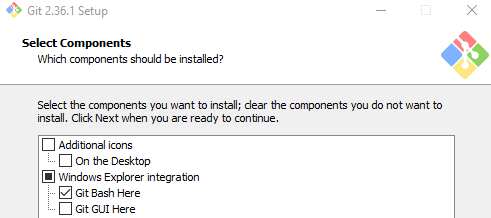
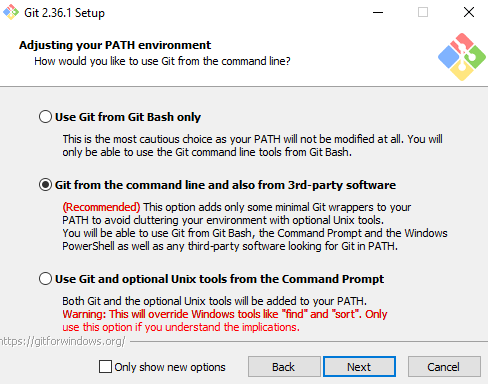
Launch the installer and go through the installation process. You can keep most of the default options if you don't know what it means. Make sure to add the Git Bash Here to Windows Explorer and to use the "recommended" option for the PATH though, as we want cmake to be able to find git.
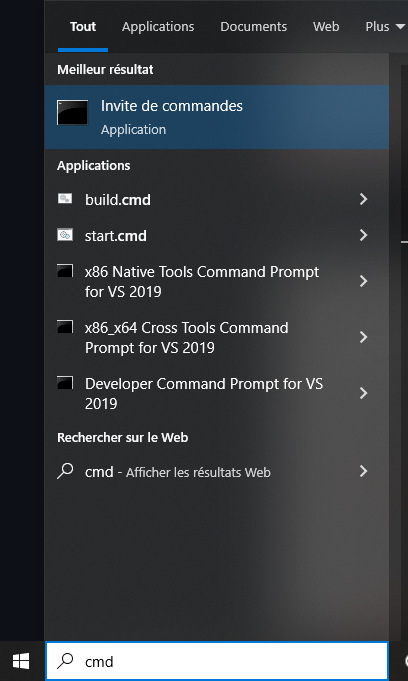
To check the installation, open a command prompt (for example by typing cmd in the Windows research bar and then clicking on it):
Type in git and press enter.
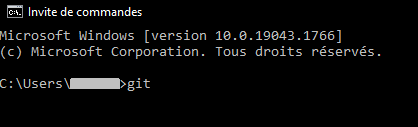
If git is correctly installed, you should see a bunch of text describing how it works. You don't need to understand it. If there is a problem with the installation, you should get something like 'git' is not recognized as an internal or external command, operable program or batch file. In this case try to reinstall git and make sure to select the right PATH option.
Download CMake from the website, make sure you download the installer, and not the source code.
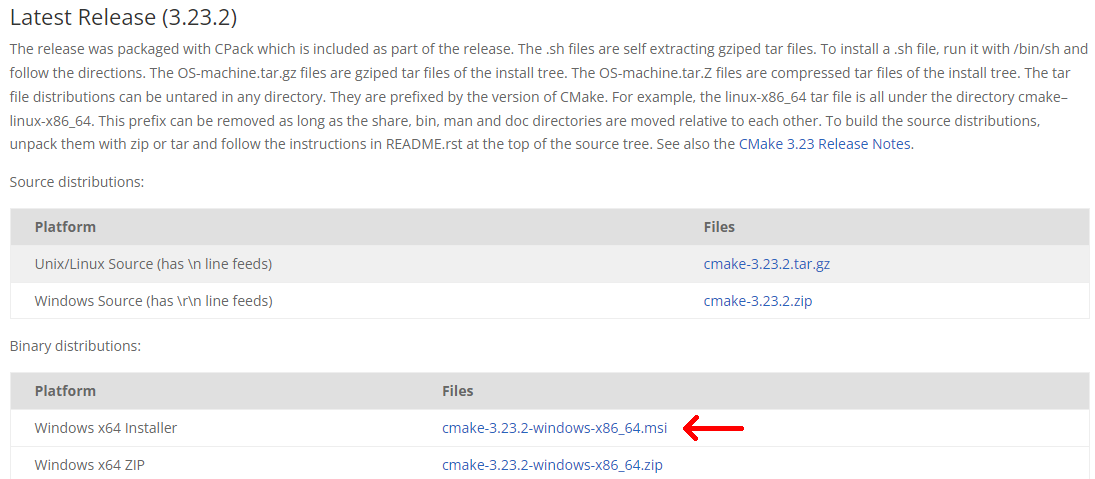
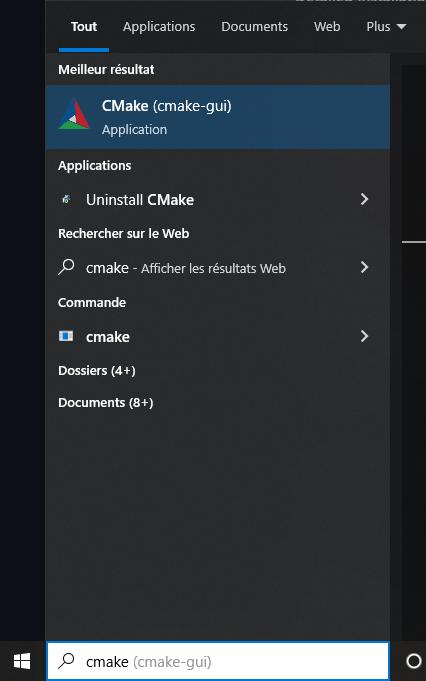
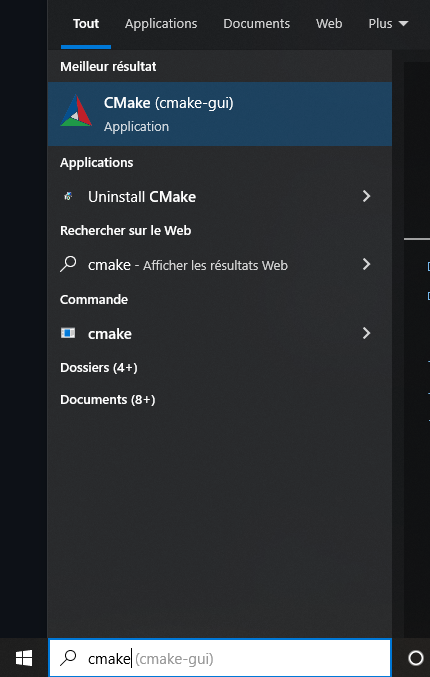
Launch the installer and install CMake. You can keep all the default values or change them as you want. To check if it works after the installation, you can type cmake in the Windows research bar, and you should find the cmake-gui application.
For the C++ compiler you have the choice between installing the full Visual Studio Community IDE (C++ compiler will be included), or only the compiler by installing the Visual Build Tools. I highly recommand installing the full IDE as it will be easier with a graphical interface than with a command line tool if you're not too experienced. Obviously if you know what you're doing, any working C++ dev env using MSVC compiler should be fine (MinGW should also work, but is not regularly tested).
As I don't really want to reinstall everything on my system, I won't have screenshots for all steps here, if you follow this tutorial and are able to get more screenshots, feel free to drop them in a discussion or an issue and I'll add them to this tutorial.
Download the installer the website and run it.
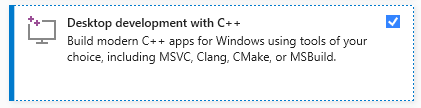
Make sure "Desktop development with C++" is checked before launching the installation.
Once the installation is done, you should be able to start with Botcraft.
(you don't need to do this step if you've already installed Visual Studio)
Go the the download website, scroll down until you see "Tools for Microsoft Visual Studio", click to expand and download "Visual Studio Build Tools".
Launch the installer. Make sure "Desktop development with C++" is checked (this is the only one we'll need) and launch the install process. Let the installation process run.
You have two alternatives to download the source code: as a zip folder from github, or using git. Please note that even if you don't use git to download the code, you still need to have it installed on your computer to automatically download the dependencies during the build process.
If you just want to test Botcraft and don't really know how to use git, the Zip method is fine. However, it means you'll have to delete and redownload the whole folder everytime you want to update Botcraft to the latest version. Using the git method on the other hand means that updating the code is as simple as running git pull.
Navigate to the botcraft repository on github, click the green "code" button, and click on the Download ZIP button.
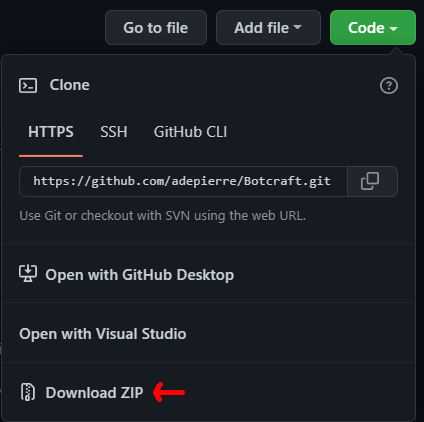
Extract the zip file where you want on your computer, and you should get a copy of Botcraft's source code, ready for the next step.
(you don't need to do this step if you've already downloaded the code with the zip method)
Go in the folder where you want the source code on your computer. Right click in windows file explorer and click Git Bash Here. A git prompt should open. Enter the command git clone https://github.com/adepierre/Botcraft.git and press enter.
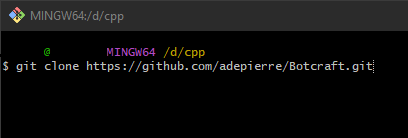
Wait for a few seconds/minutes for git to clone the source code, and you should get a new Botcraft folder containing all the source code of the application, ready for the next step.
Launch cmake-gui
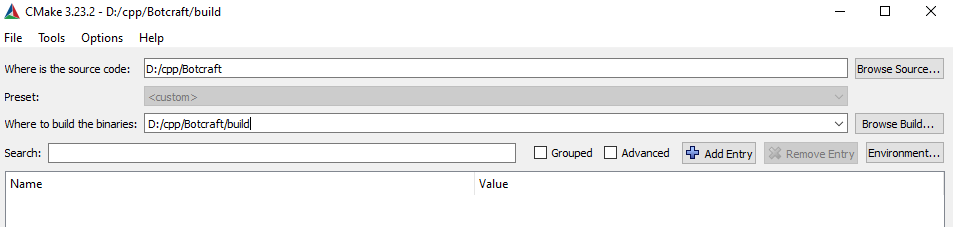
In the top section, type the path to the source code folder (you should have a CMakeLists.txt file in this folder), as well as a destination for the project files. I advise you to use a subfolder like build in the source code to keep things clean. If anything goes wrong during the cmake process, you'll just have to close cmake, delete this build folder and everything will be reset to the initial state we're at now.
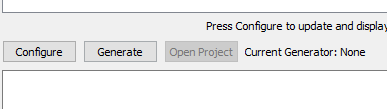
Click the Configure at the bottom of the window.
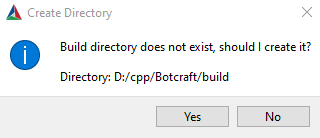
CMake should ask you the permission to create your build directory. Press yes.
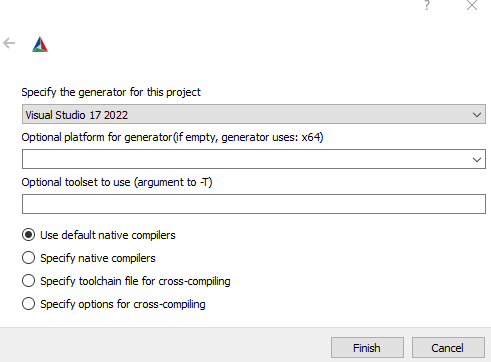
CMake will then ask you to specify the generator and platform for the project. As we're using Visual 2022, check it is selected in the list. Don't change the platform, as by default it already uses x64. Press finish and wait for CMake to do it's stuff. It can take a while the first time as it downloads Minecraft's client to extract required assets (models, textures ...).
You should get a lot of scary red lines. Don't worry if you have more "NOTFOUND" lines than on the screenshot, Botcraft's build system will automatically download and install locally the missing dependencies for you.
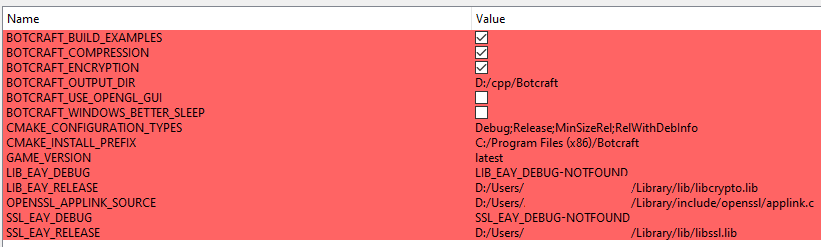
Make sure you set the variables you want (BOTCRAFT_BUILD_EXAMPLES if you want to generate the exe for the examples and not only the library, BOTCRAFT_COMPRESSION and BOTCRAFT_ENCRYPTION for compression/online capabilities, BOTCRAFT_USE_OPENGL_GUI if you want the OpenGL rendering to "see" through the eyes of your bot, GAME_VERSION to specify the minecraft version you want to compile botcraft for). You can also replace the default CMAKE_INSTALL_PREFIX from the absolute path C:/Program Files (x86)/Botcraft to a relative path like install so everything stay in the same folder and easy to find on your computer.
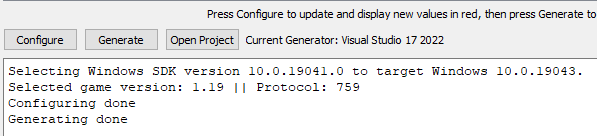
Once you've set all the options, click on Configure again. All the red values should become white, and the console at the bottom should display Configuring done. If you still have some red values, it means something changed, click Configure again and they should become white.

Now click Generate to create the Visual Studio solution. Now click on Open Project to open the solution in Visual Studio.
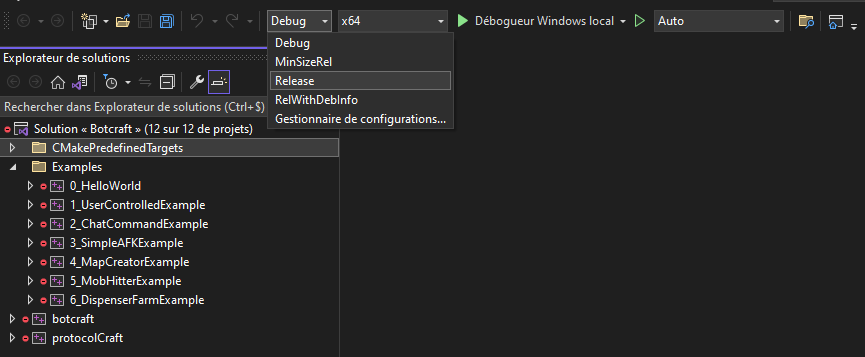
Wait for the solution to be fully loaded. On the top of the window, click on the arrow next to Debug and select Release instead (or RelWithDebInfo if you've spotted a bug and would like to investigate).
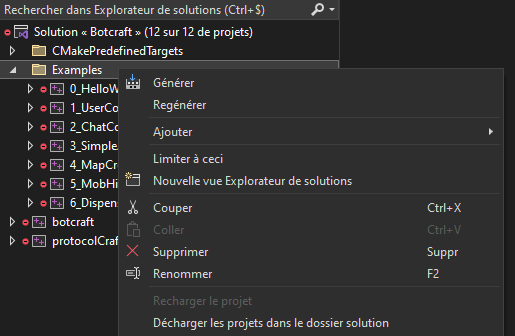
Now you're ready to compile the code. Right click on the Examples folder on the left panel, and click Build to launch the compilation. It might take a few minutes the first time.
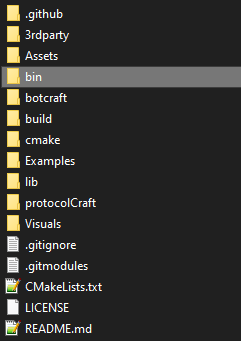
Once the compilation is finished, you should find a bin folder containing the compiled executables, as well as an Assets folder and a dll library file.
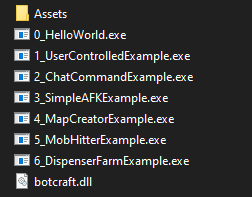
If you want to move the executables somewhere else on your computer, make sure you also move the Assets folder next to them.
To test the first executable, we'll assume you have a local server running on the same computer, accepting connections to the default minecraft port 25565 and with the serveer property online-mode set to false. If you don't know how to run a server locally, please follow this official tutorial. As you'll connect locally from the same computer/network, you don't have to bother with the port forwarding step.
While in the bin folder in Windows file explorer, double click the 0_HelloWorld.exe file to launch it. You should see a new player named BCHelloWorld connecting to the server, saying Hello World! and then disconnecting after a few seconds. Note that this example does not use the renderer, even if you compiled botcraft with it. To check the rendering part, you can launch the next example 1_UserControlledExample.exe. Please note that if you didn't enable the OpenGL rendering in cmake, testing the user controlled example is probably not a good idea as the mouse and keyboard inputs won't be captured.
In case you want to remove all the stuff installed on this page, you need to:
- uninstall git, cmake and visual using windows uninstall software feature
- delete Botcraft's source code folder